
Note: This guide will walk you through the process of setting up your ROLI Airwave and ROLI Piano with Studio One
Setting up your ROLI Airwave and ROLI Piano with Studio One is quick and easy. This setup allows you to fully take advantage of the expressive capabilities of your instruments and software. Here’s how to get started:
1. Connect your ROLI Airwave to your computer using the USB-C cable supplied.
2. Connect your ROLI Piano to your computer using a USB cable or via Bluetooth (Mac only).
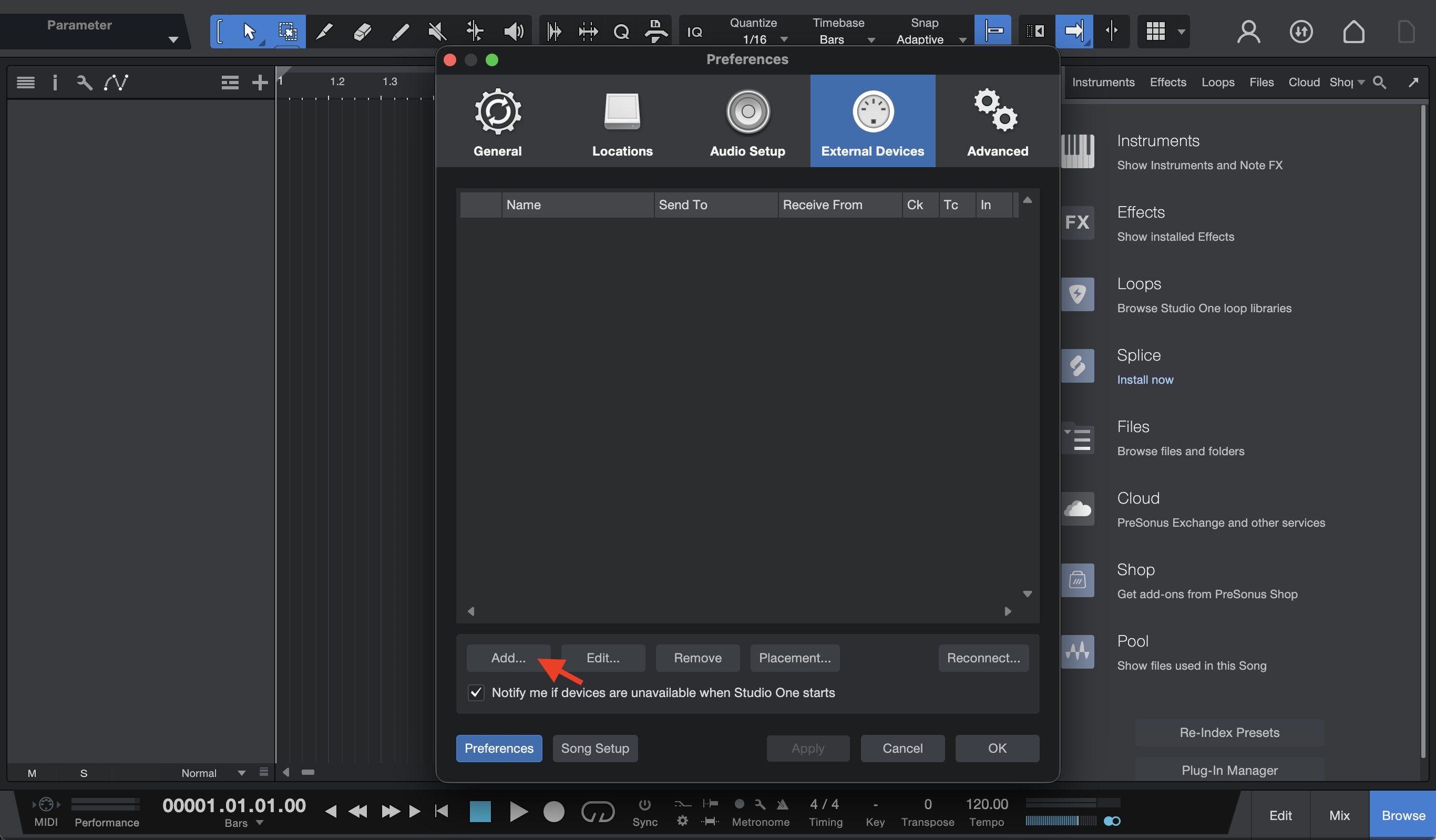
3. Open Studio One and go to Preferences.
4. A window like the one shown below will open. Click the “Add” button to add a new controller.
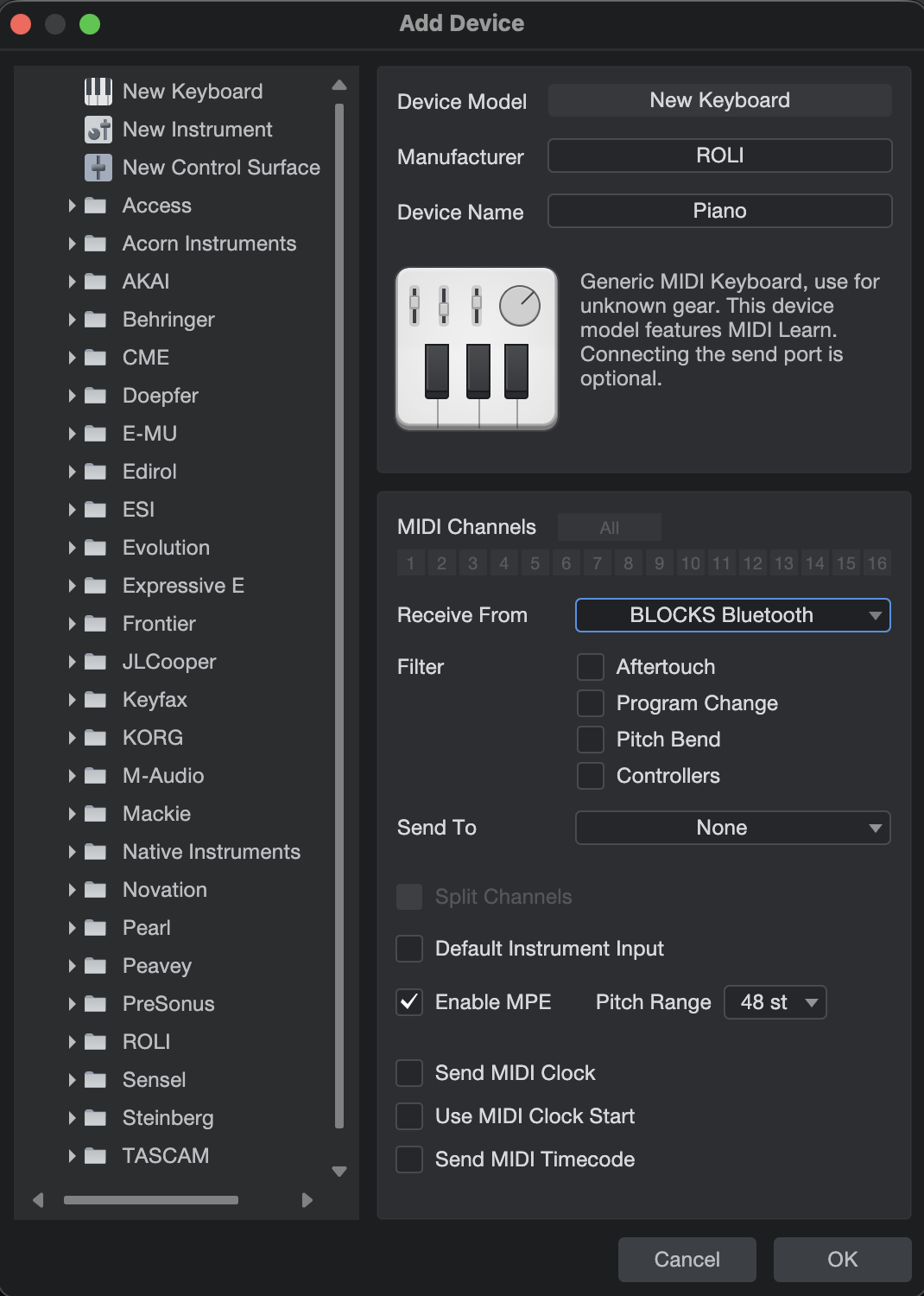
5. Here, add ROLI Piano as a new keyboard using the settings shown in the image below. Click OK to add the new device to the list.
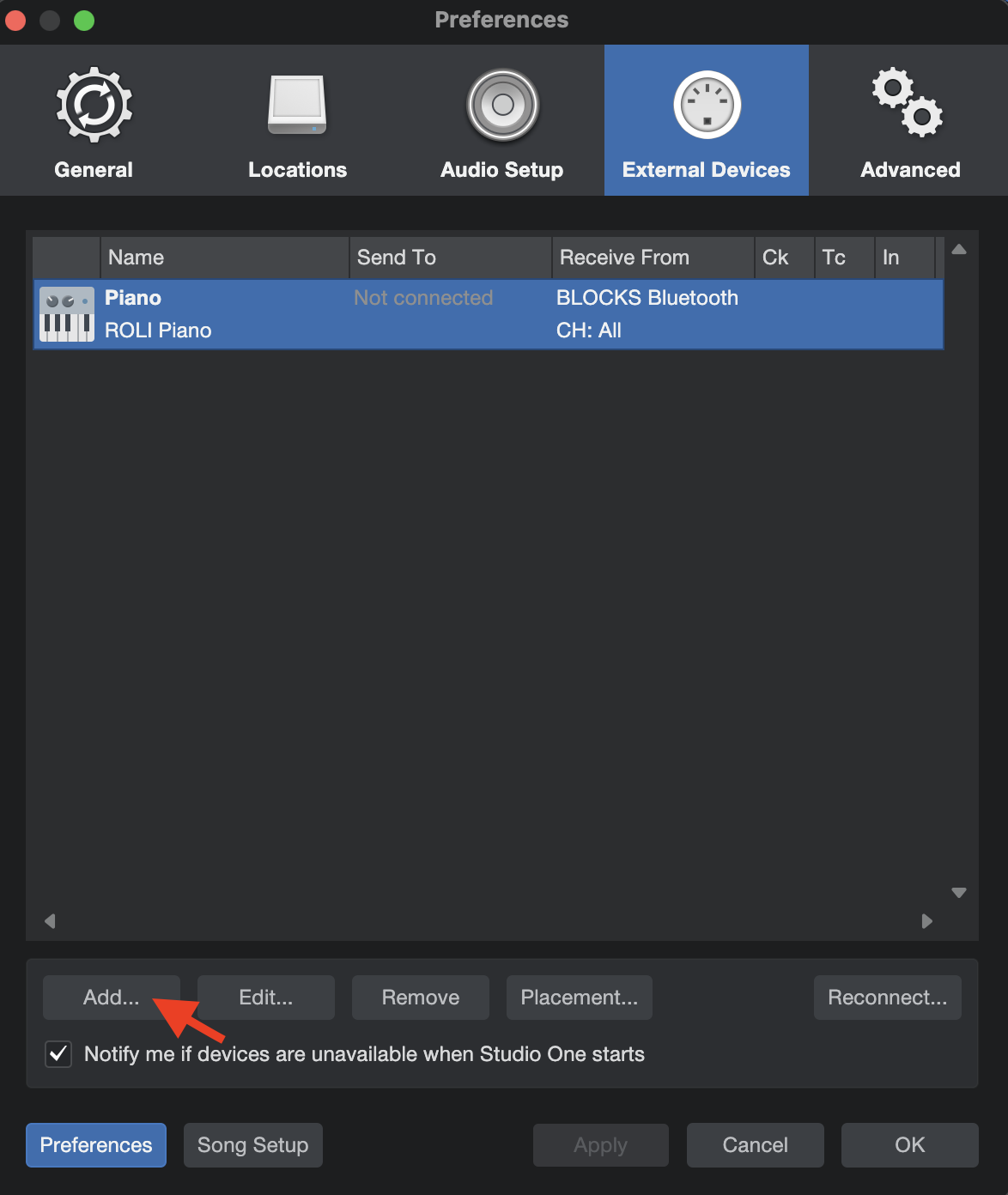
6. Now, click the "Add" button again to set up your ROLI Airwave.
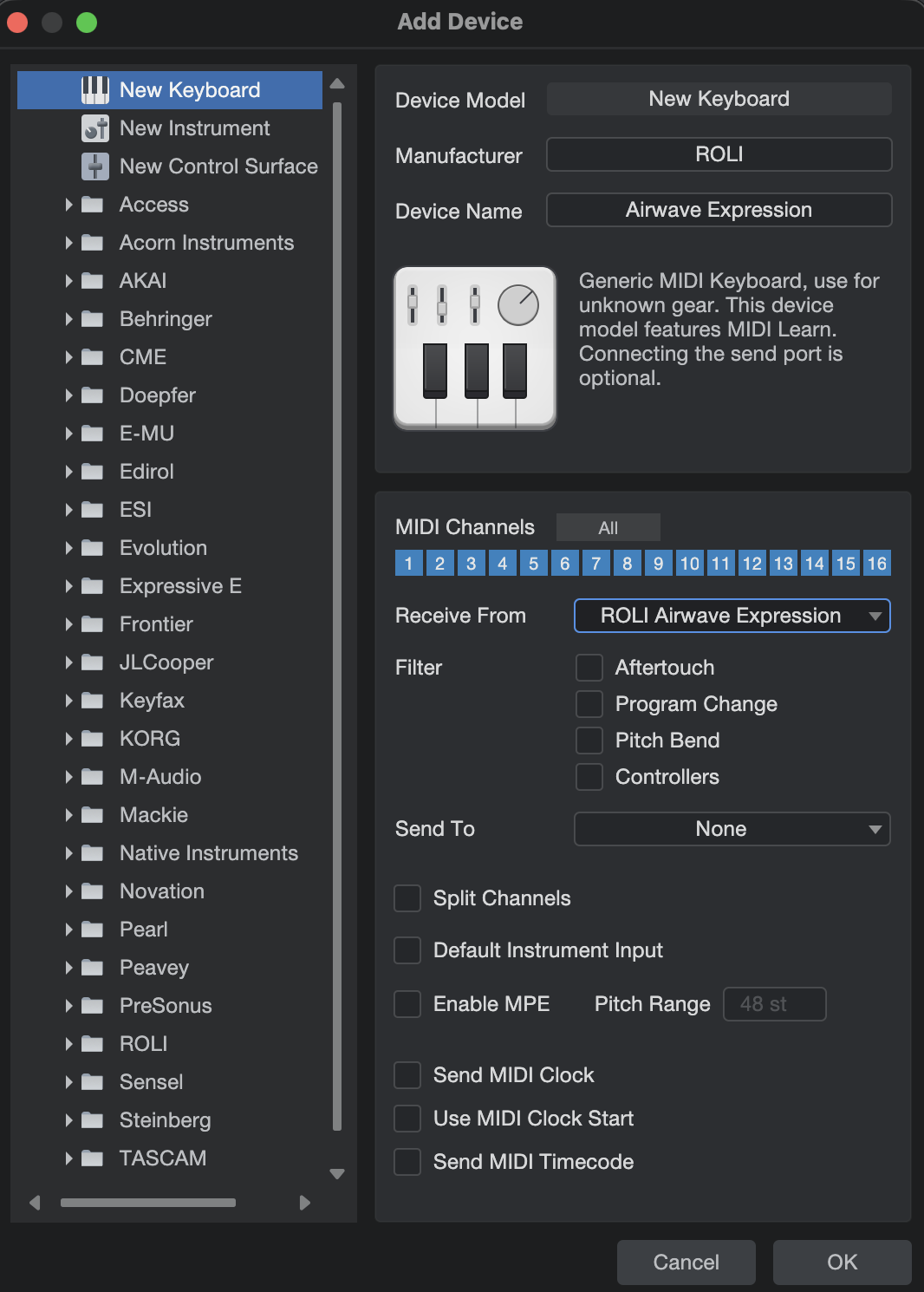
7. Next, add ROLI Piano as a new keyboard using the settings shown in the image below. Click OK to add the new device to the list.
8. Create an instrument track and set its input to “All Inputs / Any”, as shown in the screenshot below.
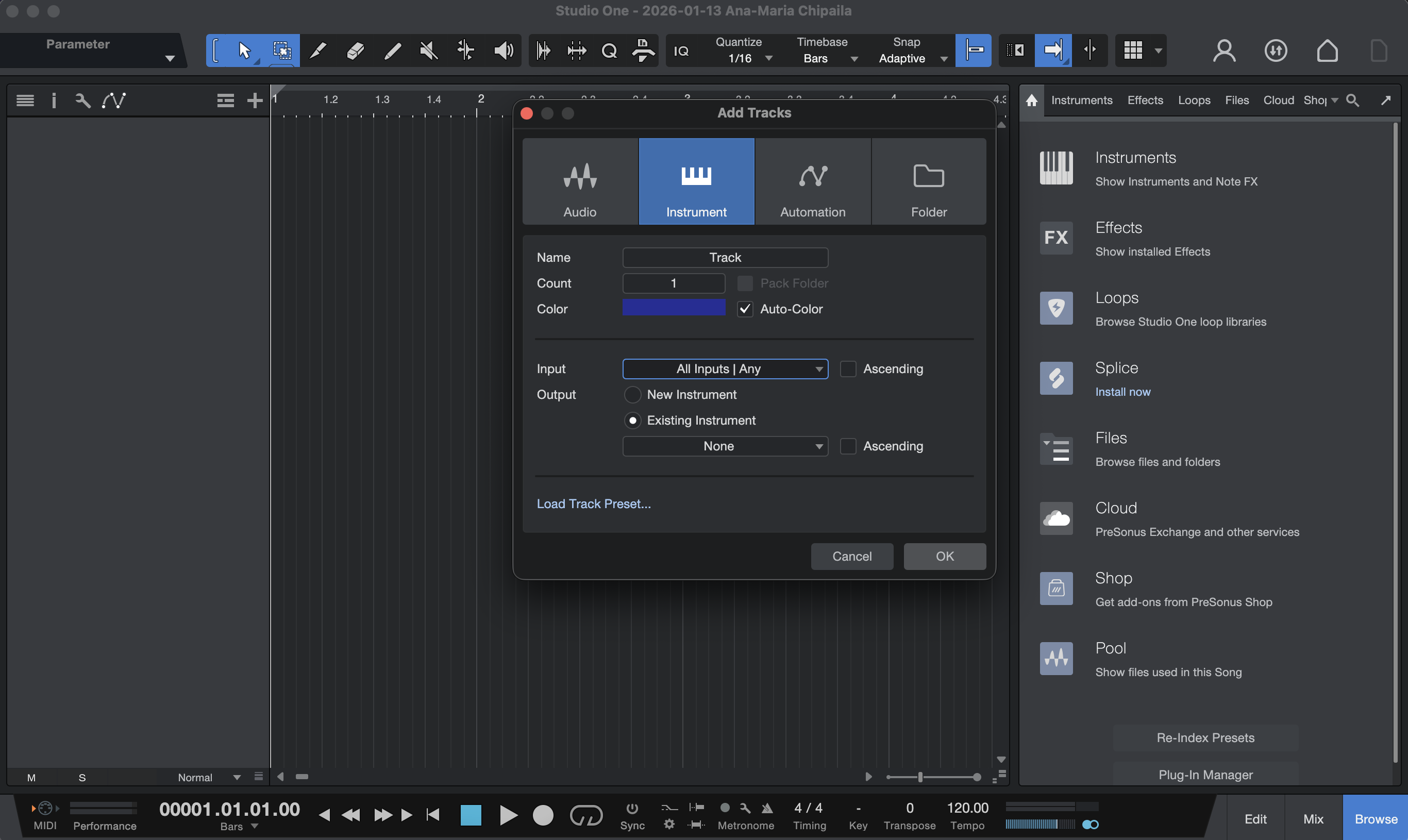
9. Add ROLI Airwave Player to your instrument track, and ensure that both the Arm and Monitor buttons are enabled. You should hear the sound of your selected instrument and have full expression.
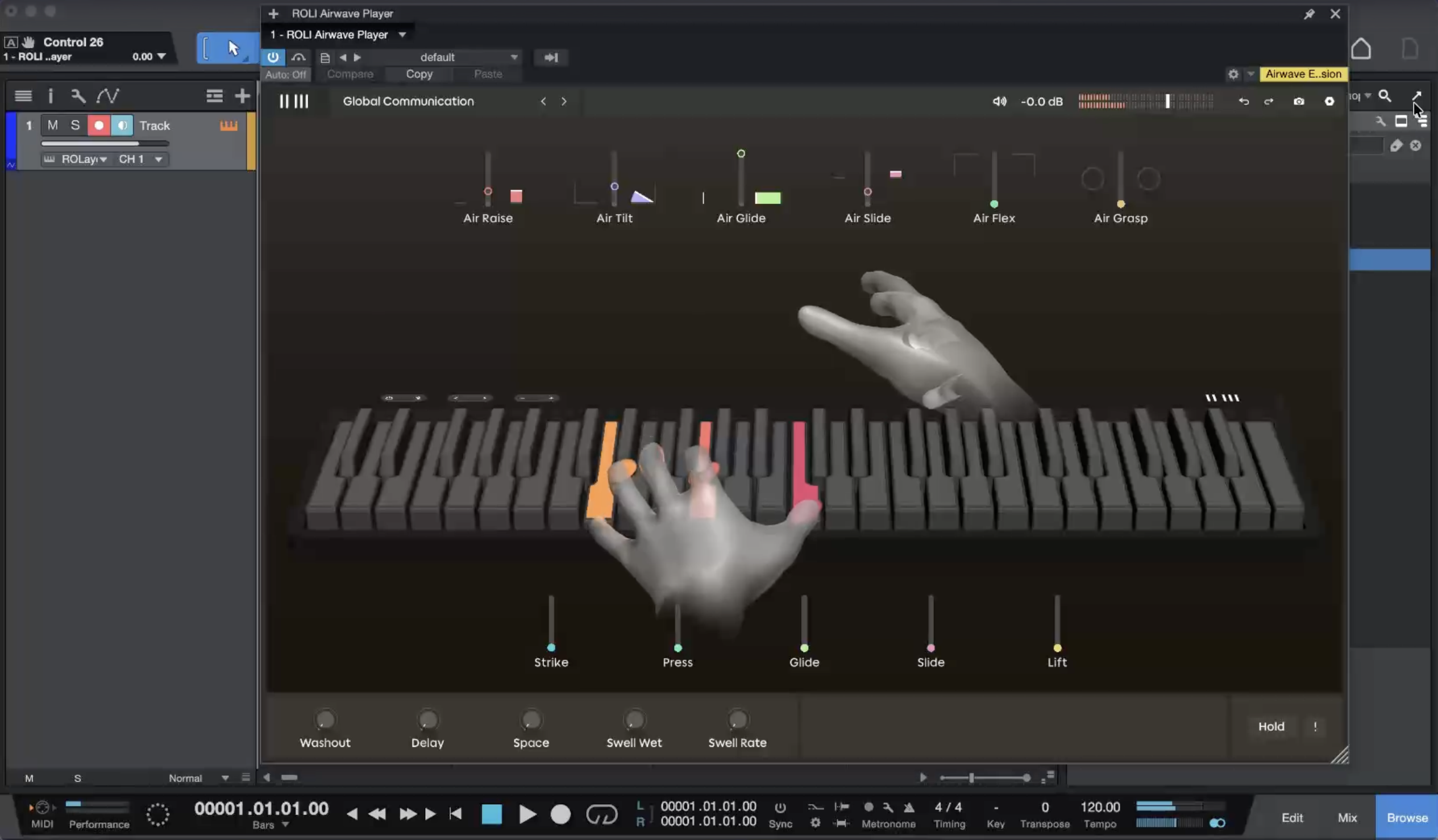
With these simple steps, you can set up your ROLI Airwave and ROLI Piano with Studio One and start creating expressive and dynamic music. If you encounter any issues, be sure to contact the Support Team for further assistance. Happy music-making!